
Microsoft Planner is a common tool among many teams as they use it to manage their tasks, but they often struggle with reporting because it lacks advanced analytics; they can see basic updates, but it does not give clear insights into performance or trends.
Most teams use Microsoft Planner for task management, but without Power BI, they miss out on actionable insights. This is where connecting Planner to Power BI helps, because it turns simple data into useful reports.
Continue reading to learn how to connect Microsoft Planner to Power BI step by step, so you can build dashboards and track progress more effectively.
Microsoft Planner is great for managing tasks, but it does not offer advanced reporting features. You can see task lists, but you cannot easily analyze trends or performance, which can be limiting as your projects grow.
This is why many teams look for planner Power BI integration, because dashboards help turn simple task data into clear visuals. While Planner has strong daily tracking capabilities, there are some additional benefits that come with using Power BI, which adds deeper insights and better control.
By connecting Planner to Power BI, you get real-time tracking, better decision-making, and centralized reporting that keeps teams organized and also helps them understand their work more clearly, thereby improving overall productivity.
Before you connect Planner to Power BI, you need a few basic things ready, because the setup depends on proper access and tools. Although the process is simple, missing any requirement can cause issues.
Having these ready will make the planner Power BI integration process smoother and faster, thereby helping you avoid errors later.
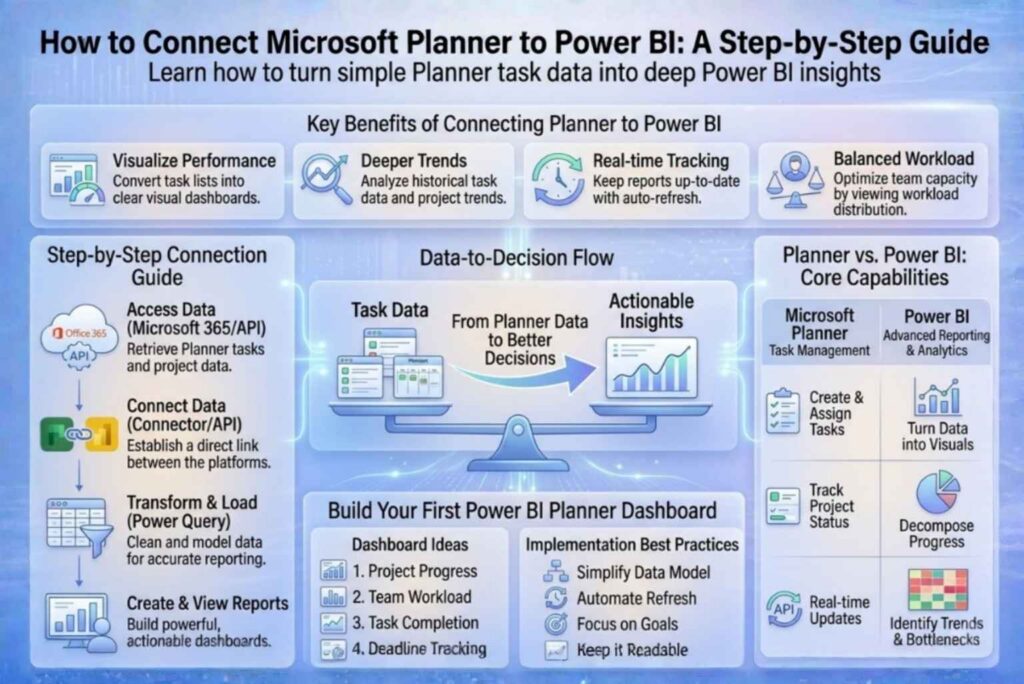
First, you need to access your Planner data using Office 365 or the Microsoft Graph API. This is quite important because Planner does not give direct export options. Although it may sound technical, it simply means pulling your task data from the source.
Next, connect that data to Power BI using an API or a custom connector. There is no direct button for this, but tools and scripts make it easier. This step is key for connect microsoft planner to power bi because it links both platforms together.
Once connected, load your data into Power BI. You can import tasks, buckets, and plans, so you have everything in one place. Having all information available in one location helps in planner reporting Power BI as they can be effectively utilized for analysis when working on the report.
Step 4: Transform Data (Power Query)
After loading, clean your data in Power Query and remove unwanted columns and rename fields so they are easy to understand. This step improves clarity, thereby making your reports more useful.
This step improves clarity, thereby making your reports more useful. If you want to understand how structured data improves reporting accuracy, check out our guide on how calendar tables support multi-source Power BI models.
Now, connect your data properly by creating relationships between tasks, users, and projects. This is crucial for tracking who is doing what and how projects are progressing.
Finally, build your Power BI planner dashboard using visuals like charts and tables. You can track task status, monitor progress, and check deadlines easily. This also helps managers identify bottlenecks early so that they can make better plans and decisions in the future.
It shows how each project is moving, because you can see completed and pending tasks clearly. It also helps track overall progress which makes planning a lot easier.
It shows how work is divided among team members, so you can spot who is overloaded. This helps you balance tasks better, resulting in improved team efficiency.
It compares completed and pending tasks, which gives a quick view of performance. It also helps track productivity over time, although data needs regular updates.
It highlights upcoming and missed deadlines, so that teams can stay alert. This helps avoid delays because this way you can act early.
There is no built-in option for Planner Power BI integration, which makes setup slightly more challenging. Although they work well once set up, you need to rely on APIs or custom methods.
For novices in particular, the API process might initially seem complicated. However, once you understand the steps, it gets easier because the logic is simple.
Reports may not update automatically, which can cause outdated data and this can affect your planner reporting Power BI, since real-time insights are very important.
Custom connectors make it easier to connect Microsoft Planner to Power BI without too much manual work. They simplify the process and saves a lot of time.
Setting up scheduled refresh keeps your dashboards updated. This ensures you always have fresh data, thus improving decision-making.
Keep your data clean and well-structured, because complex models are hard to manage. A simple model improves your power bi planner dashboard, making it faster as well as easier to use.
If you’re looking to simplify integration and build scalable reporting systems, our Business Intelligence & Analytics Services can help you connect tools like Planner and Power BI seamlessly.
Before using Power BI, teams often tracked projects manually in Planner. Updating task status, checking deadlines, and summarizing progress took a lot of time, and it was easy to miss important details.
After connecting Planner to Power BI, all task data appears in an automated dashboard. This gives managers faster access to insights and better visibility into project progress. Because updates happen in real time, teams can make quicker decisions and respond to delays before they become bigger issues.
Planner and Power BI are a powerful combination. Planner facilitates task management, while Power BI converts that data into clear dashboards and useful insights. When combined, they simplify progress tracking, spot bottlenecks, and make faster decisions.
If you need help building a Planner dashboard, explore our solutions on the Datainseyets or get in touch with our team to create a system tailored to your business.